If you've been searching for a modern anime streaming and tracking app that feels lighter than Aniyomi while still offering the flexibility of repository-based sources, Anikku has quickly become one of the most talked-about projects among anime fans in 2026. Designed for users who want a cleaner, anime-focused experience, Anikku combines watch tracking, customizable repositories, multi-source streaming, and syncing features into a single streamlined app. Whether you're migrating from Aniyomi, setting up your first anime manager, or simply looking for a better way to organize your seasonal watchlist, learning how to properly configure Anikku can dramatically improve your viewing experience. In this complete guide, you'll learn how to install and set up Anikku, add anime repositories, sync your watch progress with services like AniList and MyAnimeList, customize your library, troubleshoot common issues, and build the ultimate anime streaming setup for 2026.
What is Anikku?
Anikku is a modern, open-source anime hub designed for those who find apps like Aniyomi or Mihon too cluttered. While its predecessors try to be a "jack-of-all-trades," Anikku focuses exclusively on the anime experience. It brings the flexibility of the Tachiyomi-style repository system into a refined, video-centric environment.
Core Features of Anikku
-
Anime-First Interface: Built for video from the ground up. It’s cleaner, faster, and fully supports Material You dynamic theming.
-
The Repository Power: You aren't tied to one source. Add community repositories to pull content from multiple providers—ranging from seasonal subbed/dubbed hits to regional classics.
-
Automated Tracking: Seamless integration with AniList, MyAnimeList, and Kitsu. It automatically updates your progress in the background as you watch.
-
High-End Playback: Powered by the mpv kernel, it easily handles 10-bit HEVC and stylized SSA/ASS subtitles, ensuring the highest visual quality.
-
Advanced User Control: Unlike locked-down streaming apps, Anikku gives you full authority over playback behavior, repository management, and local backups. This level of customization makes it the "speedster" of the anime world—a lightweight hub that combines open-source flexibility with a premium feel.
How to Setup, Sync & Add Anime Repos: A Step-by-Step Guide
Now that you know what Anikku is, let’s get it running. Follow these steps to transform the app from an empty shell into a powerful anime engine.
Phase 1: Download & Installation
Since Anikku is an open-source project, you won't find it on the Play Store. You need to grab the official package directly.
1) Visit the Source: Visit our download page to get the latest version of Anikku.
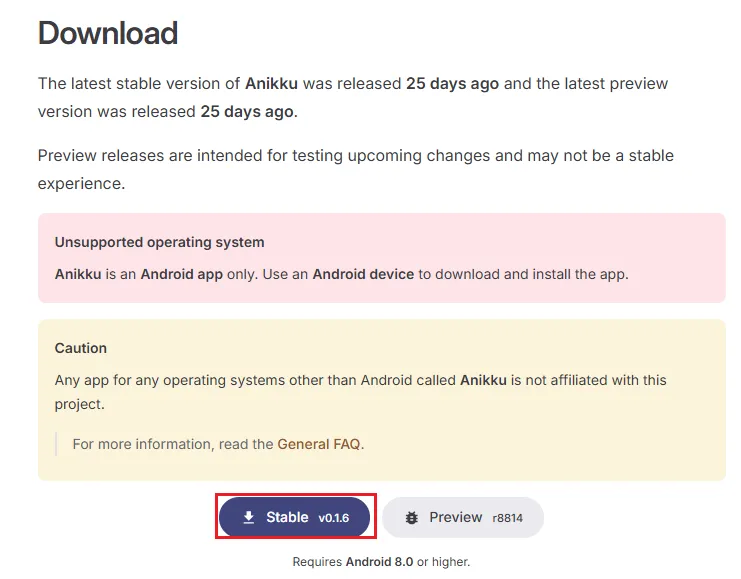
2) Bypass Security: Open the downloaded file. If Android warns you about "Unknown Sources," tap Settings and toggle on "Allow from this source."
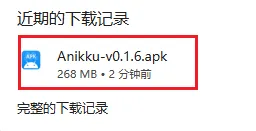 3) Install: Tap Install and launch the app.
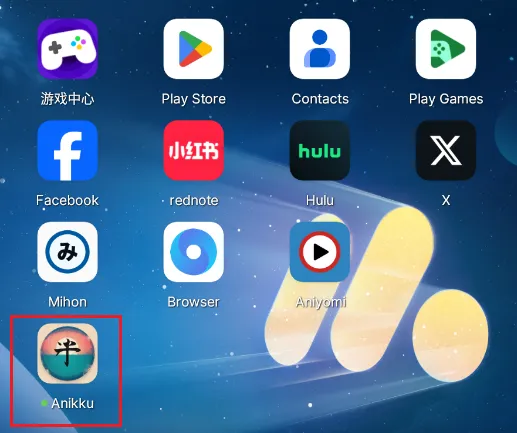
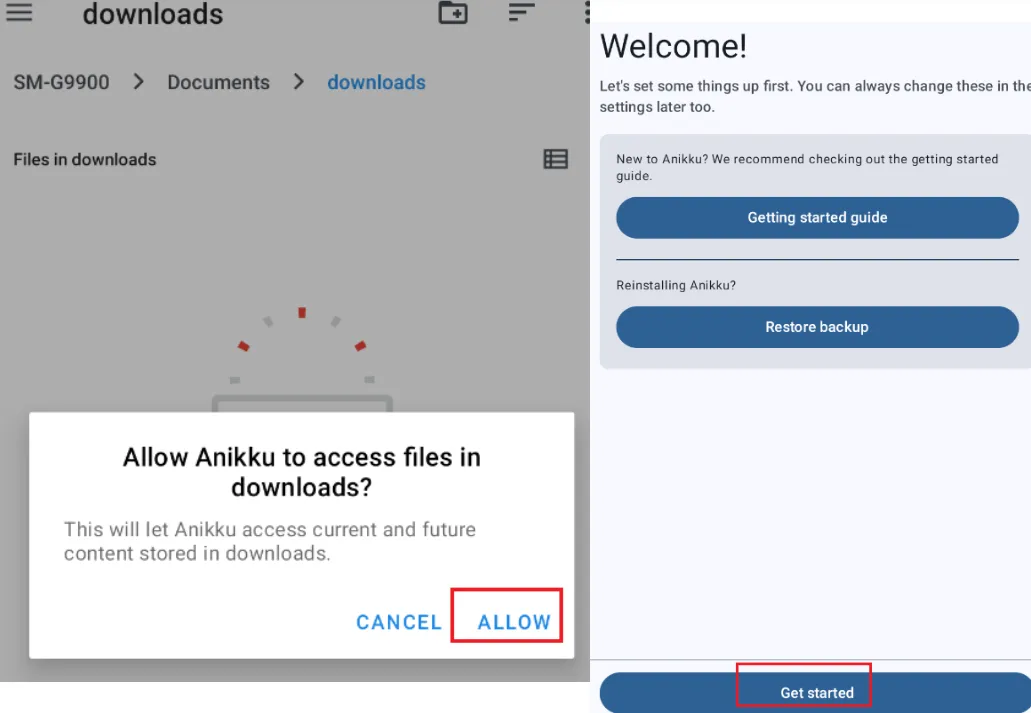
4) First Launch Setup: When you open Anikku for the first time:
-
Select a download folder – Choose any folder you can easily access (used for cache and downloads)
-
Grant storage permission – Tap "Allow" (this is required)
- Tap "Get Started" – You're ready to go!
Important: Anikku comes with no built-in content. It's an empty shell that needs repositories added to fetch anime Sources.
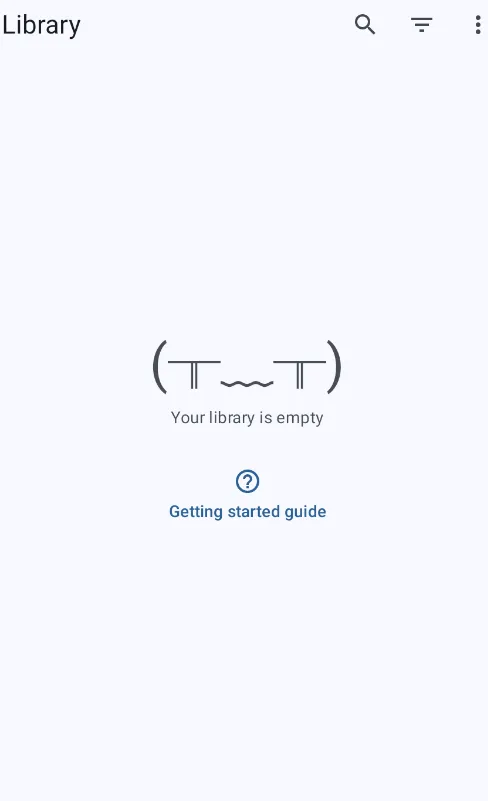
Phase 2: Adding Anime Repositories (The Brain)
A repository is an index of content sources. Adding repositories allows Anikku to search and fetch anime/manga from various providers. Follow the following steps:
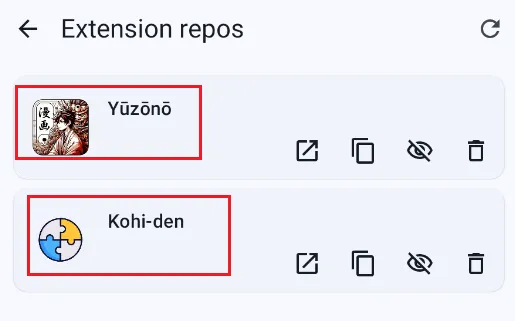
1) Tap 「Browse」 at the bottom, then tap the 「Extensions」in the top-right corner, finallt tap the Add (+) button.
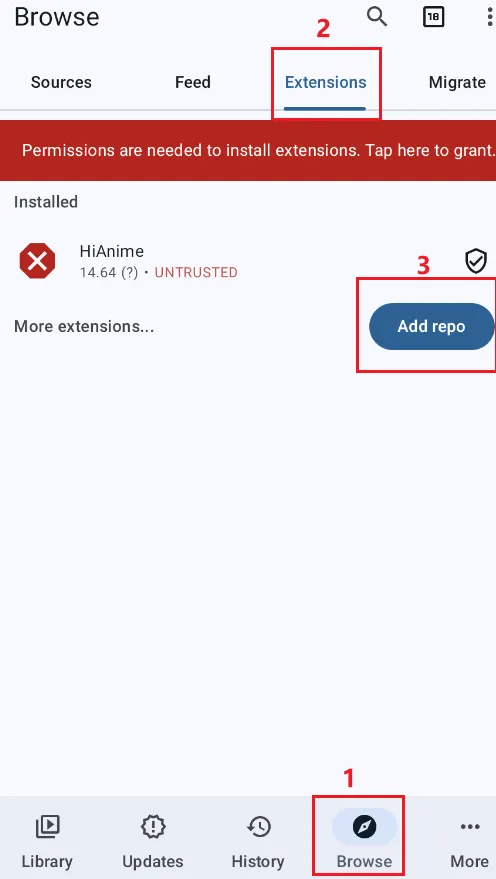
2) You will see an empty list (or a list of any repos you've already added). Tap the + button in the bottom right corner to add a new repository;
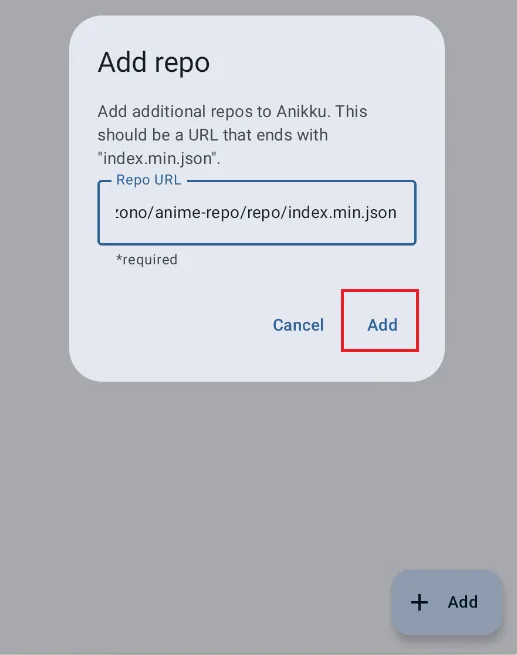
3) Now you can see Kohi-den appear in your repo list.
Phase 3: Install Extensions
Now that the repository is added, you can browse and install individual manga sources.
1) Go back to the main screen, tap Browse (bottom navigation), then tap Extensions and you will now see a long list of available extensions.
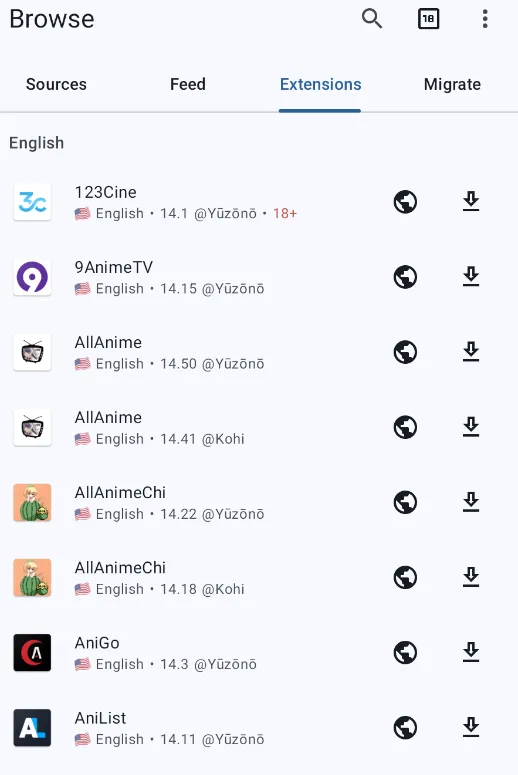
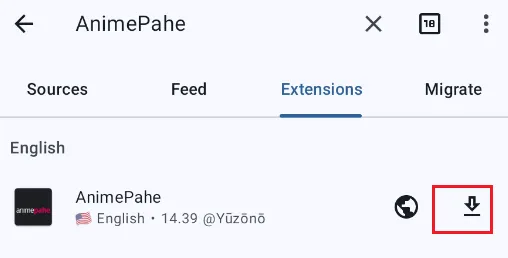
2) Find an extension you want (start with AniWatch or AnimePahe), and tap Install next to the extension name.
Phase 4: Search and Start Watching
With extensions installed and trusted, you are ready to build your library.
1) Under the Sources tab, tap on any of your installed extensions.
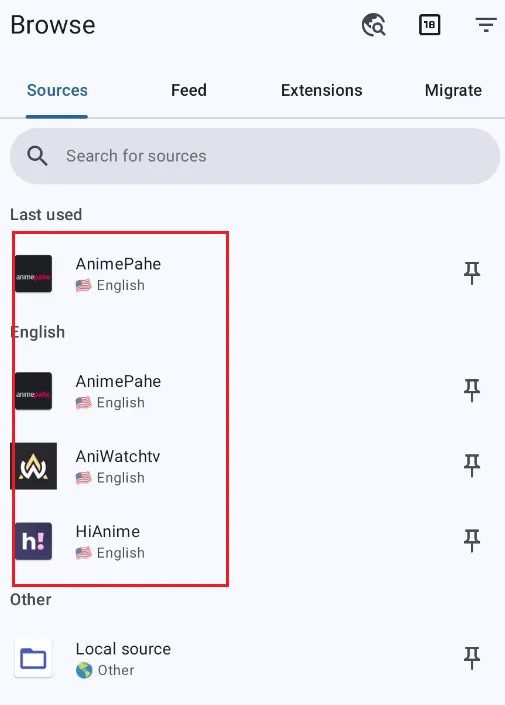
2) Type the name of Animeyou want to watch (e.g., "One Piece," "Jujutsu Kaisen," "Solo Leveling"), then tap the search result.
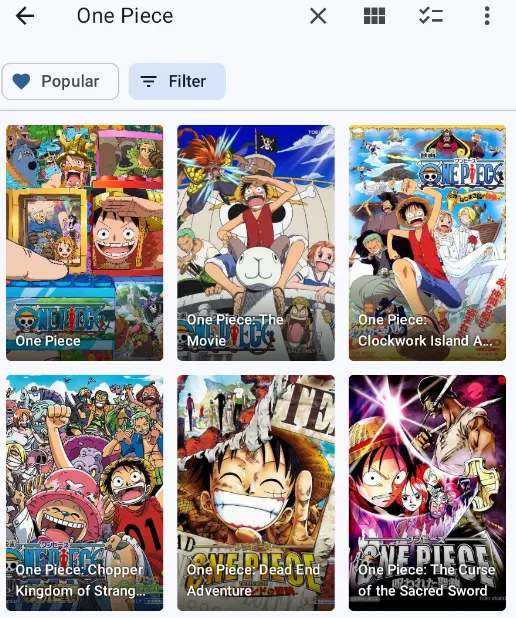
3) Tap the episode you want to watch and enjoy it.
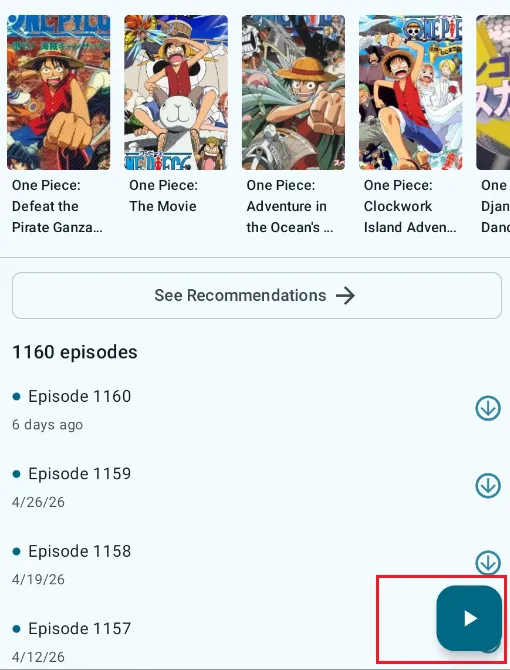
Phase 5: Syncing & Tracking (AniList/MAL)
Anikku can sync your watch/read progress to popular tracking services like MyAnimeList, AniList, and Bangumi. It supports the following 6 tracking services:
| Service | Best For |
|---|---|
| MyAnimeList (MAL) | International users (most popular) |
| AniList | International users |
| Kitsu | International users |
| Shikimori | Russian/Eastern European users |
| Bangumi | Chinese users |
| Simkl | International users |
1) Configure Tracking Account:
-
Open Anikku's 「Settings」 page
-
Navigate to 「Tracking」 (or More → Settings → Tracking)
-
Tap the service you want to use (e.g.,
MyAnimeListorBangumi) -
Tap 「Login」 and authorize the app
-
Repeat to log into multiple services simultaneously.
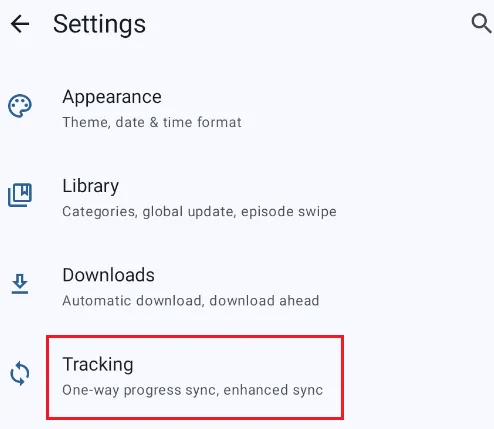
2) Set Up Tracking for Each Series: tracking needs to be set up per series:
-
Open the series you want to track;
-
Tap 「Tracking」 (usually near the top of the detail page);
-
Tap 「Add Tracking」 and select your tracking service;
-
The series is now linked to your tracker.
3) Sync Behavior:
-
Watching a specified percentage of an episode (set in Player Settings) automatically marks it as seen and syncs to your tracker;
-
You can also manually set chapters/episodes by tapping or dragging the progress indicator;
-
Start dates are set automatically;
-
Completion status updates automatically.
4) Cross-Device Library Sync (Advanced): to sync your entire library and progress across multiple Android devices:
-
Use SyncYomi + Google Drive;
-
Go to Settings → Backup & Restore → Select Google Drive sync;
-
Sign in with the same Google account on all devices to keep everything automatically synced.
The Resource Vault: Recommended Repositories & Extensions
Once you have Anikku installed, the next step is to breathe life into it by adding the right "Sources." Here are the most reliable, high-quality choices for 2026.
1. Top Anime Repositories (The Brain)
If you encounter an "Invalid Repository" error, it is likely due to network restrictions. Use the Mirror Links provided below to bypass these issues.
| Repository | Recommended Mirror URL (Copy & Paste) | Description |
| Yuzono | https://raw.gitmirror.com/yuzono/anime-repo/repo/index.min.json | The Gold Standard: Specifically optimized for anime video players with fast loading speeds. |
| Kohi-den | https://raw.gitmirror.com/Kohi-den/extensions/repo/index.min.json | The Powerhouse: A massive collection including high-bitrate sources and rare niche titles. |
Pro Tip: After pasting the link, double-check that there are no extra spaces at the end of the URL. Even one hidden space will cause an "Invalid" error.
2. Must-Have Extensions (The Top 5)
After adding the repositories, navigate to Browse > Extensions to install these specific sources. These five are the most stable and high-performing extensions available in 2026.
🚀 AnimePahe (The Data Saver)
-
Best For: Smooth playback on limited data or slower Wi-Fi.
-
Why it’s great: It uses incredible compression technology to deliver 1080p quality at a fraction of the file size.
📺 AniWatch (The Premium Experience)
-
Best For: A polished UI and movie-quality streaming.
-
Why it’s great: Formerly known as Zoro, it offers a massive library with excellent subtitle support and reliable servers.
✨ HiAnime (The All-Rounder)
-
Best For: Stability and clean hard-coded subtitles.
-
Why it’s great: Currently the #1 most stable source in 2026. It features multiple CDN nodes, meaning almost zero buffering during peak hours.
🔥 KickAssAnime (The High-Bitrate King)
-
Best For: Watching on tablets or high-resolution screens.
-
Why it’s great: Known for its high-bitrate video streams. If you want to see every detail and vibrant color, this is your go-to source.
🌐 AllAnime (The Search Engine)
-
Best For: Finding rare series or "Plan B" if a show is missing elsewhere.
-
Why it’s great: A massive aggregator that pulls from multiple servers. If it exists, AllAnime likely has it.
Final Installation Tips:
-
Handle the Pop-ups: When you tap "Install," Android will treat each extension as a mini-app. Always tap "Allow/Install" on the system prompt, or the extension won't activate.
-
Global Search: Once these five are installed, you can use the main search bar to find any series. Anikku will scan all five simultaneously to find the best quality for you.
-
Keep it Fresh: Whenever you see an "Update" notification in the Extensions tab, run it immediately to keep your video links from breaking.
Frequently Asked Questions (FAQ) & Troubleshooting
If you run into any issues while using Anikku, don't worry. Most problems have a very simple fix. Here is your "Survival Guide":
1. Is there an iOS version?
No. Anikku is built specifically for the Android framework. If you are on iOS, you may want to look into alternatives like Aidoku or Paperback, but Anikku remains an Android exclusive.
2. Is Anikku safe and legal?
Anikku itself is a neutral open-source media player (like VLC). It does not host any content. The safety depends on the Extensions you choose to install. Using reputable repos like Yuzono and Kohi-den is generally considered safe by the community, but we always recommend using a VPN for extra privacy.
3. Why do I get an "Invalid" error when adding a repository?
The Reason: This usually happens because of network blocks (GitHub is restricted in some areas) or a tiny typo.
The Fix: Always use the Mirror Link (the one starting with gitmirror.com). Also, ensure there is no empty space at the very end of the URL after you paste it.
4. The video is stuck on a "Loading" circle or shows "403 Forbidden."
The Reason: The website (source) is checking if you are a robot via Cloudflare.
The Fix: Go to the Browse tab, select the extension you are using, and tap the Globe icon (WebView). Complete the "I am human" captcha in the browser window, wait for the page to load fully, and then go back to play the video.
5. I searched for an anime, but it says "No results found."
The Reason: Extensions sometimes use different naming conventions.
The Fix: 1. Try searching for the Romaji name (e.g., Shingeki no Kyojin instead of Attack on Titan). 2. Make sure you have actually installed the extensions from the Browse > Extensions tab after adding the repository.
6. The subtitles are missing or out of sync.
The Fix: While the video is playing, tap the Gear icon (Settings). Under the Subtitles menu, you can select different language tracks (if available) or adjust the Subtitle Delay to sync the text perfectly with the voices.
7. How do I update my extensions?
The Fix: Anikku will show a notification when updates are available. Go to Browse > Extensions. If you see an "Update" button at the top, tap it. Keeping extensions updated is the best way to prevent video links from breaking.
8. Why are some extensions suddenly disappearing?
The Reason: Some repositories remove broken or unsupported extensions after websites change their APIs or shut down entirely.
The Fix: Refresh your repositories first. If the extension is still gone, check whether the source has been renamed, merged, or moved to another repo. This is normal in repository-based ecosystems and happens frequently with anime streaming sources.
9. Is my watch history saved if I switch phones?
The Fix: Yes, but you must do it manually! Go to Settings > Backup and Restore. Create a backup file and save it to your cloud storage. On your new device, simply "Restore" that file to bring back your entire library and history.
10. My watch progress isn't syncing with AniList/MAL.
The Reason: Sometimes the "Handshake" between Anikku and your tracking account expires.
The Fix: Go to Settings > Tracking and try logging out and then logging back in. Also, ensure that the "Track when watching" option is enabled in the Player settings, so the app knows when to send the update to your profile.
11. Can I use an external video player with Anikku?
Yes. Anikku supports external players like: VLC; MX Player; mpv-android. To enable this, go to: Player Settings → Internal Player → Allow Always Use External Player. External players often provide better subtitle support, hardware decoding, and smoother playback on older devices.
12. Why is anime buffering constantly?
The Reason: This usually depends on the source website rather than Anikku itself.
The Fix: Try these solutions:
-
Switch to another source mirror;
-
Lower the playback resolution;
-
Use an external player;
-
Enable a VPN if your ISP is throttling video traffic;
- Avoid overloaded peak-hour servers.
AnimePahe-style sources are often more stable than free public mirrors during high traffic periods.
13. Can I migrate from Aniyomi to Anikku?
Usually, yes — partially. Because both apps use similar repository-based ecosystems, many users migrate their tracking accounts, repositories, and watchlists manually. However, direct full-library migration support depends on the backup format version and repository compatibility. The easiest method is:
-
Sync your tracking account first;
-
Reinstall your repositories in Anikku;
-
Restore your backup if supported;
-
Rebuild your library gradually.
14. Does Anikku contain ads or trackers?
No intrusive ads are built into the official open-source version of Anikku. However, some streaming sources themselves may contain popups or redirect pages because the content comes from third-party websites. To improve privacy and reduce tracking:
-
Use trusted repositories only;
-
Enable a VPN;
-
Avoid unofficial modified APKs;
-
Consider using DNS-level ad blocking.
Final Summary: Everything You Need to Know
To wrap up this guide, let's recap the core steps to master Anikku in 2026. If you ever feel lost, just refer back to this quick summary:
-
Installation: Download the latest APK directly from the official Anikku website to ensure a clean, ad-free experience.
-
Repository Setup: Add the Yuzono and Kohi-den repositories. Remember to use the GitMirror links provided in this guide if the standard GitHub links show an "Invalid" error.
-
Essential Extensions: Boost your library by installing the "Big Five": AnimePahe (for data efficiency), AniWatch & HiAnime (for stability/UI), KickAssAnime (for high bitrate), and AllAnime (for a massive database).
-
Optimal Viewing: Use the WebView feature to bypass Cloudflare checks and adjust Subtitle Delay or Video Quality via the in-player settings gear.
-
Data Management: Keep your progress safe by syncing with AniList or MAL, and always perform a manual Backup before switching devices or reinstalling the app.
Anikku is the most powerful tool for any anime fan today, but its performance depends on how you configure it. With these repositories and troubleshooting steps in your pocket, you are now fully equipped to enjoy the best anime experience 2026 has to offer.
The world of anime is at your fingertips. Happy watching!