If you’ve ever felt the frustration of switching between half a dozen apps just to keep up with your seasonal anime and weekly manga chapters, you aren't alone. For years, Tachiyomi reigned supreme as the king of manga readers, but it lacked one crucial feature: Video. Enter Aniyomi.
It's an open-source fork that combines ad-free manga reading with a dedicated anime engine—everything you need in one Android app. But here's the catch. When you first install Aniyomi in 2026, you'll see nothing. No anime. No manga. Just an empty app. That's not a bug. In mid-2024, Aniyomi removed all built-in extensions for legal reasons, meaning you now have to manually add extension repositories yourself.
Don't let that intimidate you. This guide walks you through the entire 2026 setup: adding active repositories, installing working extensions, searching for content, and fixing common issues. Let's turn that empty screen into a fully loaded media powerhouse.
Preparation: What You Need Before Setting Up Aniyomi
Setting up Aniyomi requires a bit more "muscle" than a standard manga reader because you’ll be streaming and rendering high-definition video. Before we dive into the repositories, ensure your device is ready to handle the load.
Quick Requirements
| Requirement | Details |
| Android Device | Android 8.0 or higher (Android 12+ recommended for better video decoding) |
| Storage Space | At least 2GB free (Video cache and thumbnails consume more space than manga) |
| External Player | Recommended: VLC or MX Player (for better codec support/casting) |
| Stable Internet | 10Mbps+ for 1080p streaming; 25Mbps+ for 4K content |
Enable Installation from Unknown Sources
Since Aniyomi is an open-source project not found on the Play Store, you must give your browser permission to install APK files:
-
Go to Settings > Apps.
-
Find your browser (e.g., Chrome) or File Manager.
-
Tap Install unknown apps and toggle Allow from this source to ON.
Battery Optimization (Crucial for Video)
To prevent your phone from killing the app while you're mid-episode or downloading a season:
-
Go to Settings > Battery > Battery Optimization.
-
Find Aniyomi and set it to "Don't Optimize" or "Unrestricted."
Network & Access Tips
In 2026, streaming providers have become more aggressive with bot detection and regional blocks.
-
DNS Settings: If your extensions fail to load, try using Cloudflare DNS (
1.1.1.1) or Google DNS in your phone's Private DNS settings. -
VPN Usage: Some high-quality anime sources (like those from Japan or specific US mirrors) may require a VPN to bypass geo-restrictions.
-
The "Animetail" Alternative: If you find the base Aniyomi app feels buggy on your specific device, many users in 2026 recommend Animetail (a fork of Aniyomi) as it offers better built-in casting and smoother video playback.
💡Pro-Tip: Prepare an External Player
While Aniyomi has a great built-in player based on mpv, some video formats or "casting to TV" features work much better with an external app. I highly recommend installing VLC for Android beforehand. You can toggle "Always use external player" in Aniyomi’s settings later.
Once you have these basics covered, you're ready to download and install Aniyomi.
Step-by-Step Guide: How to Use & Add Anime/Manga Repos on Aniyomi
Setting up Aniyomi is a bit different from your standard App Store experience. Since the app acts as a secure browser rather than a content provider, you need to "plug in" the sources yourself. Follow this three-phase workflow to get up and running.
Step 1: Download and Install Aniyomi
Since Aniyomi is an open-source project, you won't find it on the Google Play Store. You must get it from the official GitHub source.
1) Go to the official Aniyomi GitHub page. You'll see two types of releases:
| Version | Who it's for |
|---|---|
| Stable | Daily users who just want things to work |
| Preview | Testers who don't mind occasional crashes |
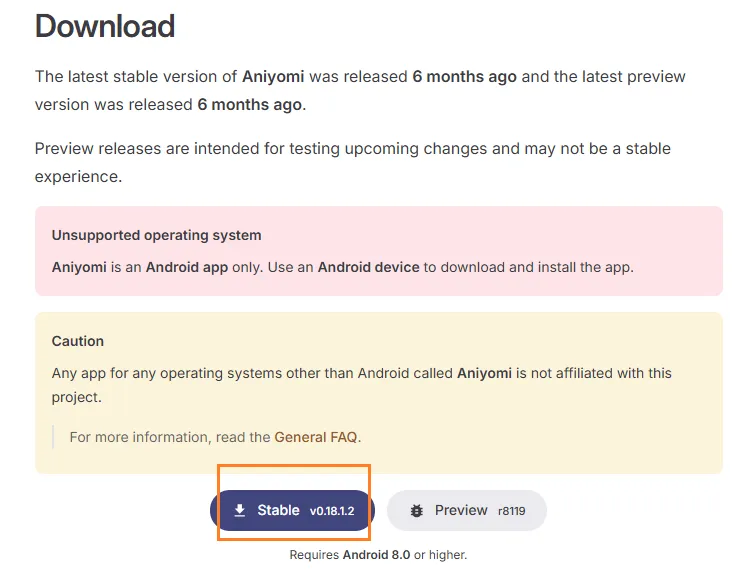
2) Unless you enjoy debugging, pick Stable. As of April 2026, that's v0.18.1.2.The APK is about 80MB. Download it directly to your phone. Once it's done, tap it. Android will ask if you really want to install an app from outside the Play Store. You do. Approve the permission, finish the install.
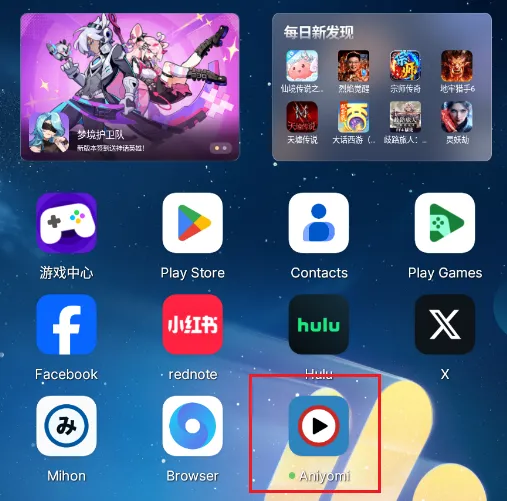
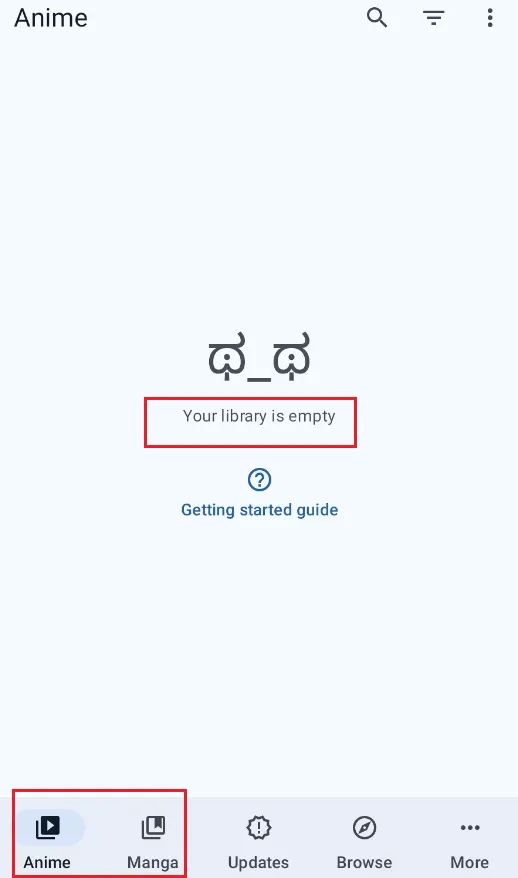
3) Open the app, you'll see an empty library and no manga and Anime sources—That's not a bug. That's the starting line.
Step 2: Add Your First Repository
Aniyomi is a "shell." To see any content, you must add a repository (repo) that acts as a catalog for anime and manga sources. Follow the following steps:
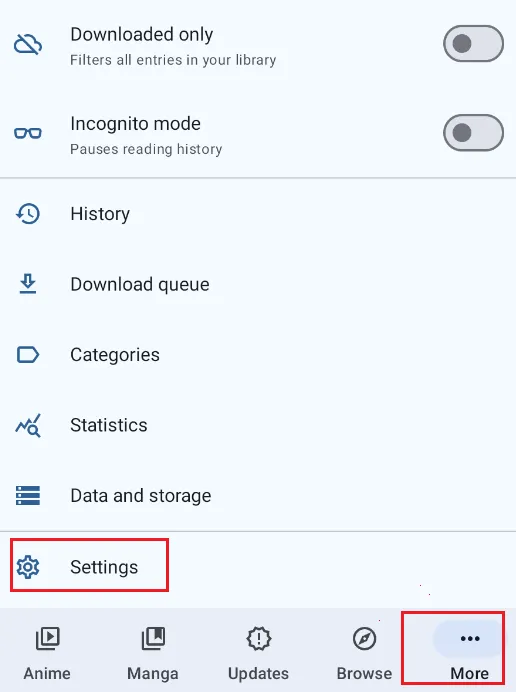
1) Tap More in the bottom right corner, and then tap Settings from the menu that appears.
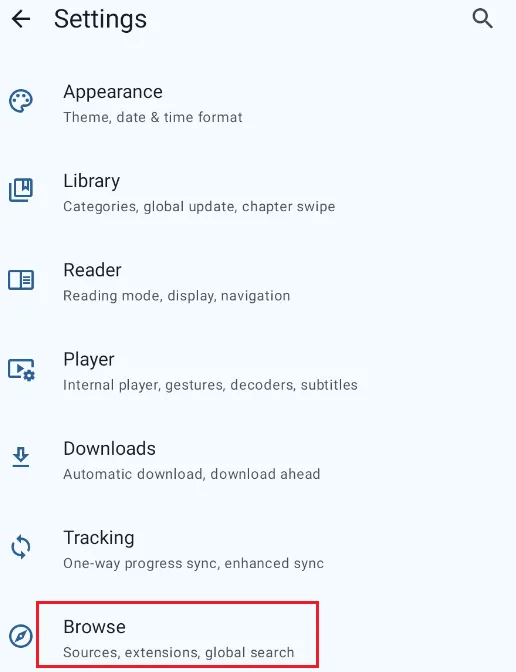
2) In the Settings screen, tap Browse.
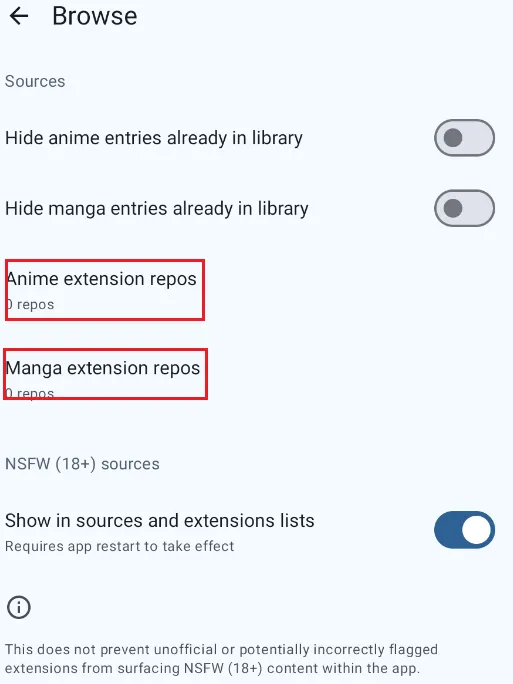
3) Inside the Browse settings, tap Anime or Manga Extension repos.
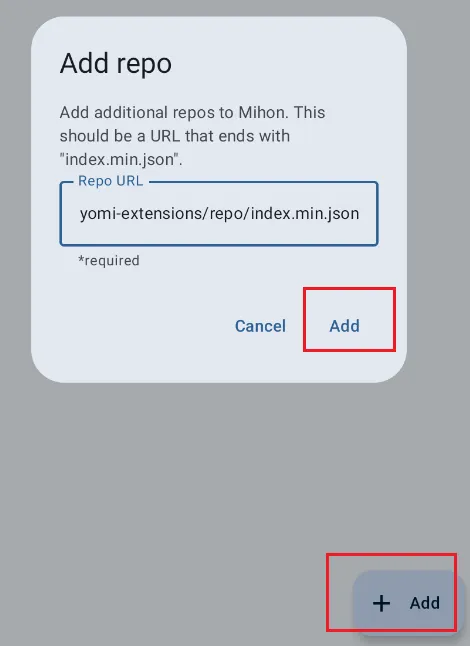
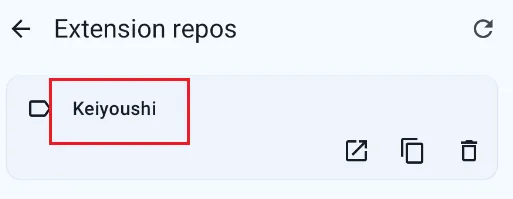
4) Tap the Add (or +) button in the bottom corner, and carefully paste the following URL (The Keiyoushi Repo): https://raw.githubusercontent.com/keiyoushi/extensions/repo/index.min.json, and tap Add to confirm.
5) You'll see Keiyoushi appear in your repo list. That's it. You've just connected Aniyomi to the largest collection of working extensions in 2026.
Step 3: Install and "Trust" Extensions
Now that you have the catalog, you can install individual manga and Anime sources.
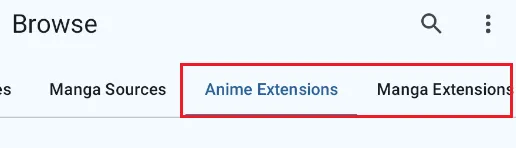
1) Go back to the main screen, tap Browse (bottom navigation), You will see two tabs at the top: Anime Extensions and Manga Extensions.
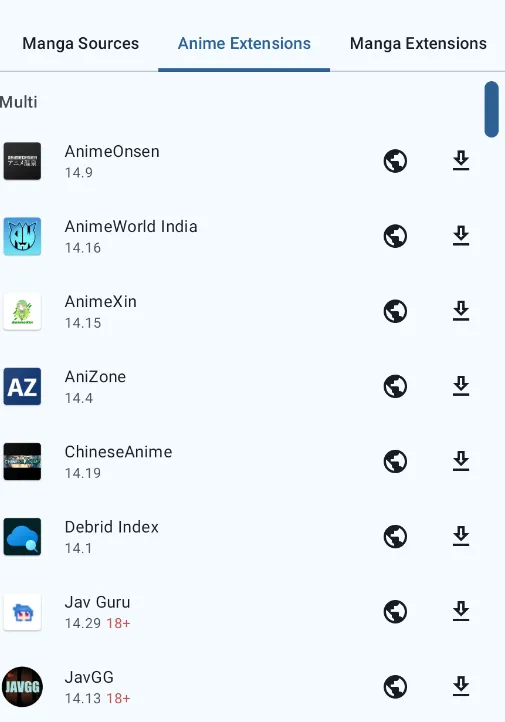
2) then tap it and you will now see a long list of available extensions.
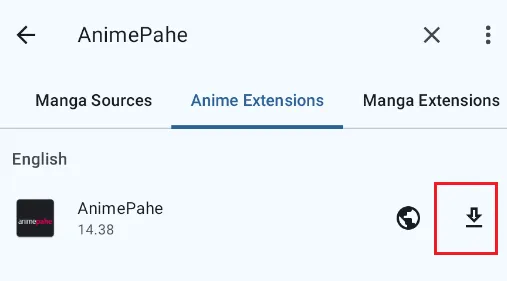
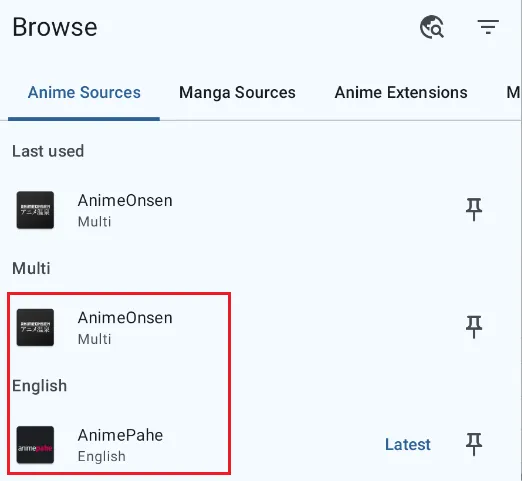
3) Choose a source (e.g., AnimePahe for anime or MangaDex for manga) and tap Install next to the extension name.
Step 4: Search and Start Watching/Reading
With extensions installed and trusted, you are ready to build your library.
1) Under the Browse tab, tap on any of your installed extensions.
2) Use the Search bar at the top to find a title (e.g., "Frieren" or "One Piece").
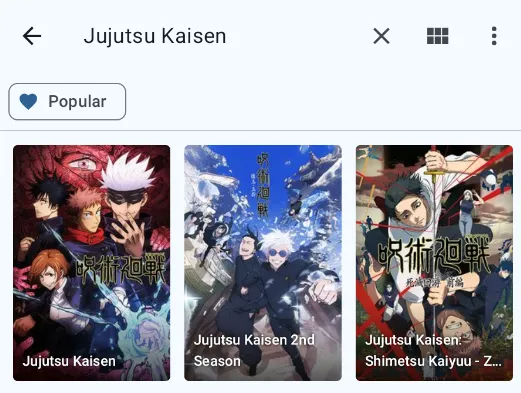
3) Tap on the result to see the episode or chapter list.
4) For Anime: Tap an episode, select your preferred quality (e.g., 1080p), and the video player will launch.
5) For Manga: Tap a chapter to start reading.
Step 5: The "WebView" Fix (If content doesn't load)
In 2026, many websites use "Cloudflare" to block bots. If you see a "403 Error" or a blank screen, follow this:
1) Inside the extension or a specific entry, tap the Three-Dot Menu (or the Globe icon).
2) Select "Open in WebView."
3) Wait for the website to load. If there is a "Check if you are human" box, tick it.
4) Once the site fully appears, press Back to return to Aniyomi. The content should now load perfectly.
💡 Pro-Tip: Regular Updates
In 2026, streaming sites change their code frequently.
-
Go to Browse > Extensions weekly.
-
If you see an "Update" button next to your extensions, tap it immediately to ensure your sources don't break.
Troubleshooting: Quick-Fix Reference Table
Even with the best repos, things can go sideways. Use this table to diagnose and fix common issues in 2026.
| If you see... | Then do this... |
|---|---|
| Empty extension list (after adding repo) | Swipe down firmly to force sync. If that fails, go to Settings → Advanced and switch Installer to "Legacy." |
| "Untrusted Extension" banner | Tap the extension name and hit Trust. This is a 2026 security requirement for all manual installs. |
| No results when searching | Make sure the extension is both installed AND trusted. Then check if the source website is up by opening it in a browser. |
| Video won't load or buffers forever | Lower quality to 480p/720p, or switch to an external player like VLC in Settings → Player. |
| HTTP Error 403 (Access Denied) | Use the WebView (globe icon next to the source). Solve the Captcha in the pop-up browser, then return to the app. |
| HTTP Error 500 | This is a server problem on their end, not yours. Wait an hour and try again. |
| Video player says "List is empty" | The source website may have changed. Check for extension updates, or try a different server within the extension's settings. |
| Extension won't update | Uninstall the extension and re-install it directly from the repo list to refresh the signature. |
| Pages load very slowly | Check for extension updates. Try switching from Wi-Fi to mobile data (or vice versa). Clear cache in Settings → Advanced. |
| Downloads never start | Check storage space in Settings → Storage. Make sure Aniyomi has storage permission in your phone's app settings. |
| App feels laggy | Uninstall extensions you never use. Clear cache. Keep only 1-2 repos (too many slow down update checks and drain battery). |
Top Aniyomi Extension Repositories in 2026
In Aniyomi, Extension Repositories (Repos) act as your gateway to content. Without them, the app is just an empty shell. Because Aniyomi is a dual-purpose app, these repos provide two types of engines: Anime (for video streaming) and Manga (for reading).
2026 Recommended Repositories
| Priority | Repo Name | Content Type | Best For |
| Essential | Kohi-den | 🎬 Anime ONLY | The Video Specialist. Every streamer’s first stop for 1080p anime without broken links. |
| Essential | Keiyoushi | 📚 Manga ONLY | The Library King. Unbeatable for high-res manga, manhua, and manhwa. It is the "Mihon Standard." |
| Optional | Yuzono | 🎬 + 📚 (Split) | The Hybrid Backup. Best for niche "cultural" content (H-sites) or as a safety net if a main repo is down. |
1. Kohi-den (The King of Anime)
In 2026, Kohi-den is the undisputed champion for anime. Unlike other repos that try to do everything, Kohi-den focuses exclusively on the video experience.
-
Repo URL: https://kohiden.xyz/Kohi-den/extensions/raw/branch/main/index.min.json
-
Why it's essential:
-
Optimized Scrapers: Their extensions are updated almost daily to bypass 2026's aggressive Cloudflare protections.
-
Top Sources: Includes the most stable versions of HiAnime (formerly AniWatch), GogoAnime, and AnimePahe.
-
Quality First: Supports multiple server switching and hard/soft sub-selection directly in the player.
-
2. Keiyoushi (The Manga Gold Standard)
If you’ve used Mihon or Tachiyomi, you know Keiyoushi. It is the largest and most reliable manga repository in existence.
-
Repo URL: https://raw.githubusercontent.com/keiyoushi/extensions/repo/index.min.json
-
Why it's essential:
-
Global Reach: 100+ sources covering every language and genre.
-
Elite Quality: Home to MangaDex, MangaFire, and Asura Scans.
-
Reliability: When a site changes its URL, Keiyoushi is usually the first to push a fix.
-
3. Yuzono (The Versatile Backup)
Yuzono is great to have as a secondary option. It often carries niche or "experimental" extensions that haven't made it to the main repos yet.
-
Anime Repo: https://raw.githubusercontent.com/yuzono/anime-repo/repo/index.min.json
-
Manga Repo: https://raw.githubusercontent.com/yuzono/manga-repo/repo/index.min.json
4. Self-Hosted & Local Sources (The Private Vault)
For power users who want to avoid the "cat-and-mouse" game of streaming sites, Aniyomi supports connecting to your own private servers.
-
Komga / Suwayomi / Kavita: Connect to your home PC or NAS to stream your own collection of
.mkvor.cbzfiles. -
Local Source: You can point Aniyomi to a folder on your phone or SD card. It will organize your downloaded files into a beautiful, metadata-rich library interface.
-
Why go Private? No broken links, zero ads, and your library works even if the internet goes down.
Which Repo Should You Choose?
To keep your app fast and avoid duplicate extension warnings, follow this simple 2026 "Power-User" setup:
-
For Anime Fans: Add Kohi-den.
-
For Manga Fans: Add Keiyoushi.
-
For the Ultimate Experience: Add Kohi-den + Keiyoushi.
⚠️ Warning: Do NOT add more than 3 repositories. In the 2026 version of Aniyomi, having too many active repos can cause the "Extensions" tab to crash or fail to refresh due to memory overhead.
The Must-Have Extensions for 2026
Once you’ve added your Repos, you’ll see a sea of extensions. Don’t install them all—that will only slow down your app. Instead, stick to these high-performance "Power Sources."
🎬 Best for Anime (Find these in Kohi-den)
| Extension | Best For... | Why it's a Top Pick in 2026 |
| HiAnime | The All-Rounder | Formerly AniWatch. It’s the most stable source in 2026, offering fast streaming, soft-subs, and the largest library of seasonal anime. |
| AnimePahe | Data Savers | Known for its proprietary compression. You get 1080p quality at incredibly small file sizes—perfect for watching on the go. |
| GogoAnime | The Reliable Backup | The "grandfather" of anime sites. If a show is missing elsewhere, it’s almost always here. It rarely suffers from server downtime. |
📚 Best for Manga (Find these in Keiyoushi)
| Extension | Best For... | Why it's a Top Pick in 2026 |
| MangaDex | High-Quality Scans | Ad-free and community-driven. It offers the best image quality and supports multiple languages without annoying watermarks. |
| MangaFire | Fastest Updates | If you’re chasing the latest chapters of One Piece or Jujutsu Kaisen, MangaFire usually updates within minutes of the official release. |
💡 Pro-Tip: How to Handle "Broken" Extensions
In 2026, streaming sites change their "handshake" logic every few weeks. If your favorite extension suddenly stops working:
-
Check for Updates: In the
Extensionstab, if you see a blue Update button, hit it immediately. Maintainers often push fixes within hours. -
The "WebView" Wake-up: If an extension gives you a "403 Forbidden" error, tap the Globe icon (WebView) on the source's page. Complete any "I am human" captcha in the browser that pops up, then go back to the app.
-
Clean the Cache: Go to
Settings > Advanced > Clear Chapter Cache. This forces Aniyomi to fetch the most recent links from the site.
Frequently Asked Questions (FAQ)
1. Is Aniyomi legal?
Aniyomi itself is completely legal - it's just an app. The legality of the content depends on the sources (extensions) you use. Some sources host copyrighted content without permission. Users should respect copyright laws in their country.
2. Is Aniyomi safe?
Yes, Aniyomi is open-source, meaning anyone can inspect the code for security issues. Extensions are third-party and require your trust to install - only use extensions from trusted repositories like Keiyoushi and Kohi Den.
3. Do I need to root my phone?
No. Aniyomi works on any Android device running Android 6.0 or higher.
4. Can I transfer my Tachiyomi/Mihon library to Aniyomi?
Yes! Aniyomi is compatible with Tachiyomi/Mihon backup files:
-
In your old app: Settings → Backup → Create backup
-
Transfer the
.bakor.jsonfile to your new device -
In Aniyomi: Settings → Backup → Restore backup → Select file.
5. Why does it say "Untrusted Extension" after installation?
This is a security feature, not an error. To protect you, Aniyomi requires you to manually approve third-party sources. You should tap the name of the installed extension and select "Trust". Only then will it show up in your search results.
6. Can I sync my progress with MyAnimeList (MAL) or AniList?
Absolutely. Go to Settings > Tracking. Log in to your AniList or MAL account. Aniyomi will automatically update your "Currently Watching" list and chapter progress as you finish an episode or volume.
7. Does Aniyomi support "Skip Intro" or "Auto-Play" like Netflix? A: Yes, but it's extension-dependent.
-
Auto-Play: Can be toggled in Settings → Player.
-
Skip Intro: In 2026, most HiAnime and GogoAnime links support "double-tap to seek." You can set your seek interval to 85 seconds (average intro length) in Settings → Player → General → Skip duration.
8. The video player is lagging or won't start. What should I do?
Built-in players sometimes struggle with 4K or specific codecs. You should Install VLC or MPV from the Play Store. Then in Aniyomi, go to Settings > Player and set "External Player" to your chosen app. This solves 90% of playback issues.
9. Can I download Anime for offline viewing?
Yes! Aniyomi supports downloading both manga and anime. For anime, just tap the Download icon on the episode list.
Pro-tip: You can change the download location to your SD Card in Settings > Downloads to save internal storage space.
Final Thoughts: Your Ultimate All-in-One Hub
In 2026, the real luxury for a fan isn't having ten different subscription apps—it’s having one platform that does it all. Aniyomi isn't just an anime player or a manga reader; it is the ultimate bridge between these two worlds.
By combining the video precision of Kohi-den with the massive library of Keiyoushi, you’ve essentially built a private media center. Whether you want to catch the latest high-octane episode in 1080p or relax with a high-res manga chapter, you’re now just one tap away—all within the same interface.
🚀 Your 2026 "Smooth Sailing" Checklist:
-
The Dual-Setup: Remember, keep Kohi-den for your watch list and Keiyoushi for your reading list.
-
Stay Updated: A quick "Swipe Down" on your extensions once a week keeps the scrapers sharp.
-
Backup is Life: Your history for both anime and manga is stored in one file. Export it to your cloud monthly so you never lose your progress.
Aniyomi might take a few minutes to set up, but the reward is a seamless, ad-free experience that respects your time and your passion. Now, go enjoy the best of both worlds!