If you're into reading manga on your Android phone, you've probably heard of Tachiyomi. For years, it was the go‑to open‑source manga reader—no ads, no tracking, and complete freedom to read from dozens of sources. But in early 2024, Tachiyomi shut down development after legal pressure from a Korean company. Enter Mihon.
Mihon is the official successor to Tachiyomi, built by the same contributors who kept Tachiyomi alive for years. It looks and works almost identically, but with one major difference: Mihon comes with zero built‑in extensions. The legal issues that killed Tachiyomi revolved around those extensions, so to stay safe, Mihon removed them entirely. That means if you install Mihon today, you won't see any manga sources—just an empty app.
But don't worry. Adding extensions back is easy once you know where to look.This guide will walk you through everything you need to set up Mihon (or revive your old Tachiyomi) in 2026, including the only extension repo you'll ever need, step‑by‑step installation, how to migrate from Tachiyomi, and working extensions that actually work right now. Let's get started.
Preparation: What You Need Before Setting Up Mihon
Before installing extensions on Mihon, make sure you have a few basic requirements ready. The setup process is simple and usually takes less than 10 minutes, but missing any of the steps below may cause issues later.
Quick Requirements
| Requirement | Details |
|---|---|
| Android Device | Mihon only works on Android (Android 8.0 or higher recommended) |
| Allow Unknown Apps | You must enable installation from unknown sources in your system settings |
| Stable Internet Connection | Required to load extension repositories and install sources |
| A Few Minutes | Most setups take around 5–10 minutes |
Enable Installation from Unknown Sources
Since Mihon is not available on the Google Play Store, you’ll need to install it manually using an APK file. To do this:
1) Go to Settings on your phone;
2) Open Security or Privacy;
3) Find Install unknown apps;
4) Allow permission for your browser or file manager.
- On newer Android versions, this permission is granted per app (e.g., Chrome or Files).
Network & Access Tips
Some extension repositories may take time to load depending on your region or network conditions.
-
If extensions don’t appear, try switching networks (Wi-Fi ↔ mobile data);
-
Avoid unstable or restricted connections;
-
In some cases, certain sources may not be available in all regions.
Optional (But Recommended)
To improve your experience:
-
Keep your device updated to the latest Android version;
-
Use a clean install (avoid outdated app versions);
-
Prepare a file manager app for easier APK installation.
Top Mihon Extension Repositories in 2026
In Mihon, extension repositories (repos) are required to access manga sources. Without adding a repo, the Extensions section will remain empty. In 2026, only a few repositories are actively maintained and recommended for most users.
📊 Quick Overview
| Category | Repo Name | Best For | Notes |
|---|---|---|---|
| ⭐ Primary | Keiyoushi Extensions | Most users / beginners | Largest coverage, actively maintained |
| 🟡 Optional | Yuzono Repo | Backup / additional sources | Smaller ecosystem, optional |
⭐ 1. Keiyoushi Extensions (Recommended for Most Users)
The Keiyoushi repository is the most widely used and actively maintained extension repo in the Mihon ecosystem.
Repo URL: https://raw.githubusercontent.com/keiyoushi/extensions/repo/index.min.json
Why this repo is recommended:
-
Largest coverage of manga sources;
-
Actively maintained with frequent updates;
-
Stable and beginner-friendly;
-
Works seamlessly with Mihon.
Best choice for:
-
First-time Mihon users;
-
Users who want a simple setup;
-
Anyone who only wants one working repo.
💡 In most cases, this single repo is enough to fully use Mihon.
🟡 2. Yuzono Repo (Optional Alternative)
The Yuzono repository is a community-driven alternative that provides additional or experimental sources.
Repo URL: https://raw.githubusercontent.com/yuzono/manga-repo/repo/index.min.json
Key features:
-
Additional sources not always available in the main repo;
-
Useful as a backup option;
-
Broader experimental ecosystem.
Best for:
-
Users who want extra flexibility;
-
Backup in case primary sources fail;
-
Exploring alternative content sources.
⚠️ This repo is optional, not required for most users.
🔵 For Advanced Users: Self-Hosted Manga Libraries
This is not an extension repository. Instead, it's a different setup for advanced users who prefer to host their own manga collections. Tools like Kavita and Suwayomi let you run a personal manga server. Mihon can then connect to your server through specific extensions, giving you full control over your library without relying on third-party websites.
Recommended for:
-
Power users;
-
Privacy-focused readers;
-
Offline manga collectors.
⚠️ Only explore this option if you understand server setup. For most readers, Keiyoushi is all you need.
💡 Which Repo Should You Choose?
For most readers, the setup is simple:
-
✅ Start with Keiyoushi only
-
➕ Add Yuzono if you need backup sources
-
⚙️ Explore self-hosted options only if you understand the setup
Note: Using too many repos can cause duplicate extensions, slower performance, and more broken sources.
Step-by-Step Setup Guide
This section walks you through the entire process from installation to your first chapter. Follow each step in order, and you'll be reading manga in about ten minutes.
Step 1: Download and Install Mihon
Mihon is not available on the Google Play Store. The official website is the safest place to get it.
What to do:
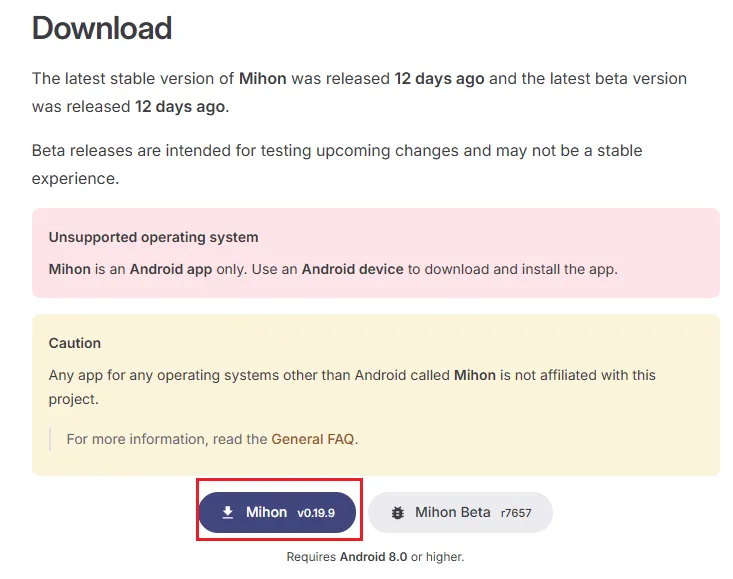
1) Open your phone's browser and go to https://mihon.app/download/;
2) Download the latest stable version: mihon-v0.19.9.apk (as of April 2026)
3) Once downloaded, tap the file to install, if Android asks for permission, allow installation from your browser (you already set this up in the Preparation section)
Requirements: Android 8.0 or higher.
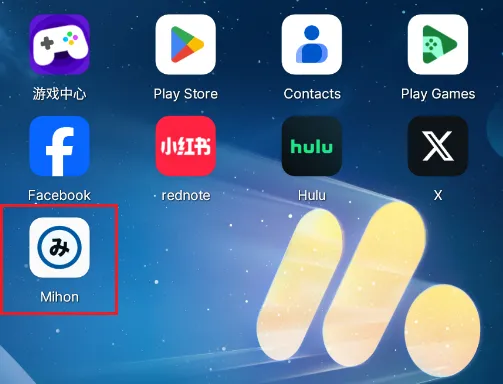
After installation: Open Mihon. You'll see an empty library and no manga sources—that's normal.
Step 2: Add the Extension Repository
This is the most important step. Without a repository, you cannot see or install any extensions. Think of the repository as a "catalog" that tells Mihon where to find available extensions.
What to do:
1) Open Mihon, tap More in the bottom right corner of the screen;
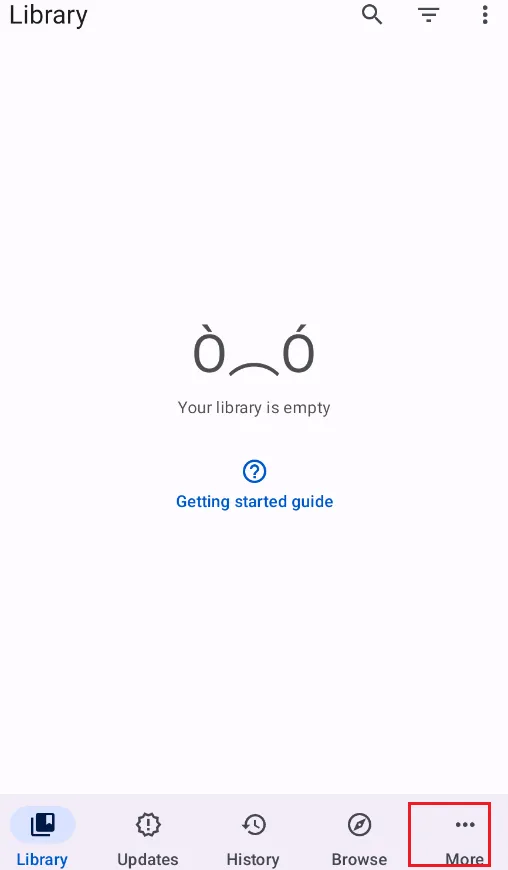
3) Tap Settings from the menu that appears;
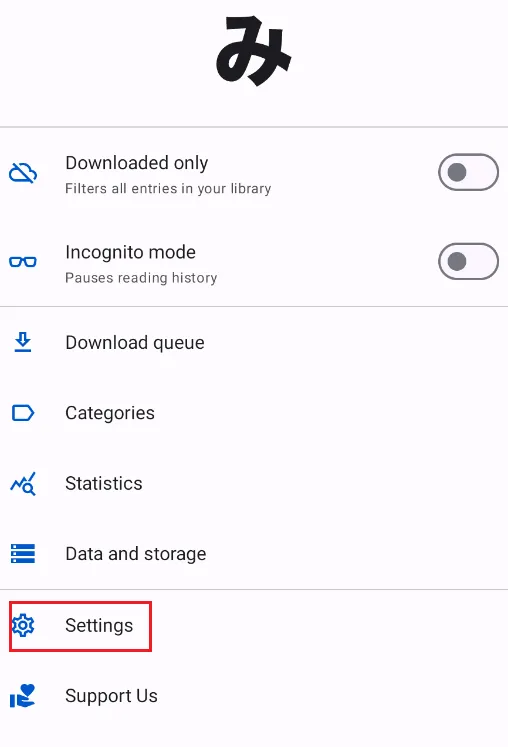
4) In the Settings screen, tap Browse;
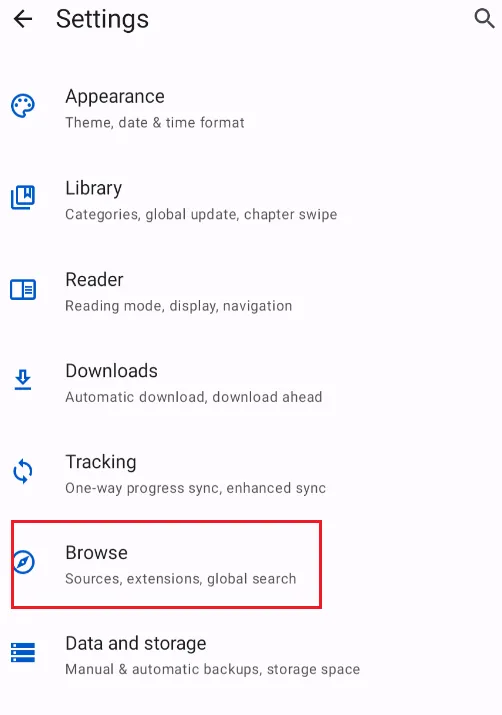
5) Inside the Browse settings, tap Extension repos;
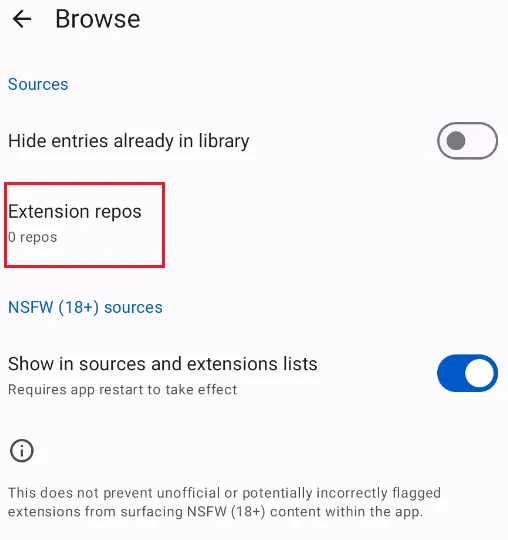
6) You will see an empty list (or a list of any repos you've already added). Tap the + button in the bottom right corner to add a new repository;
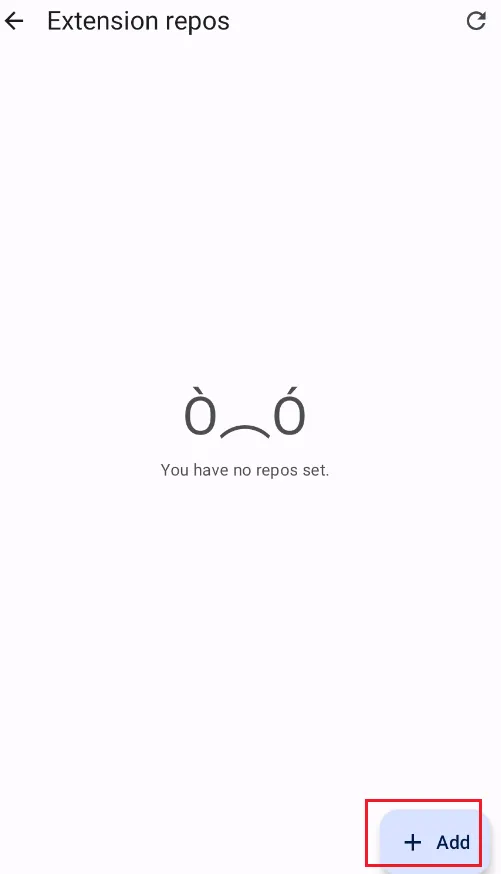
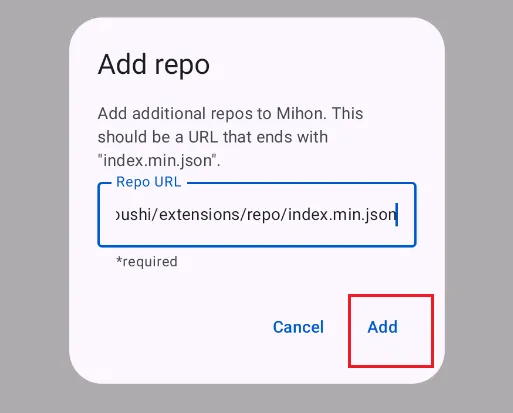
7) A dialog box will appear asking for the repository URL. Carefully paste the following URL: https://raw.githubusercontent.com/keiyoushi/extensions/repo/index.min.json, and tap Add to confirm.
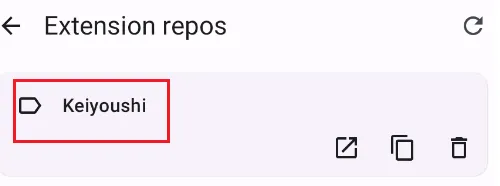
7) After tapping Add, the dialog closes and the Keiyoushi repository appears in your Extension repos list. You should see its name and URL. No error messages should appear.
⚠️ One repository is enough for most users. Adding multiple repos can cause duplicate extensions and slower performance. Stick with Keiyoushi unless you have a specific reason to add more.
Step 3: Install Extensions
Now that the repository is added, you can browse and install individual manga sources.
What to do:
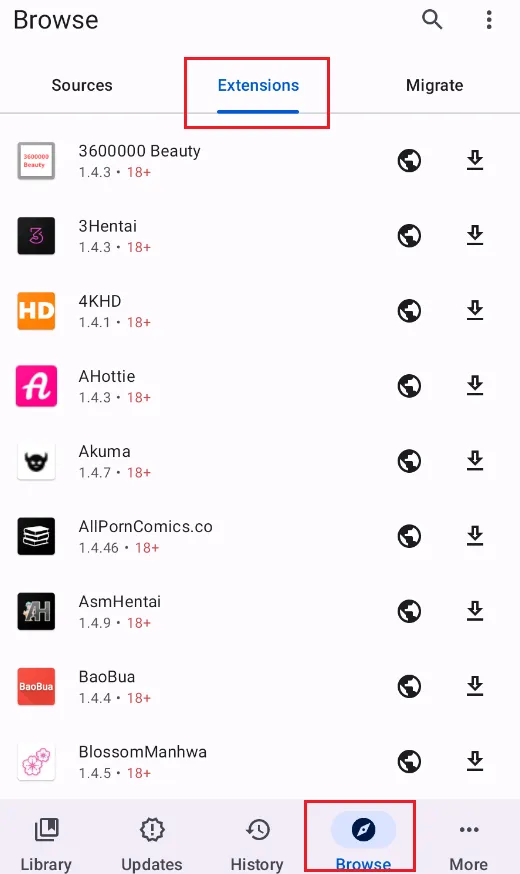
1) Go back to the main screen, tap Browse (bottom navigation), then tap Extensions and you will now see a long list of available extensions.
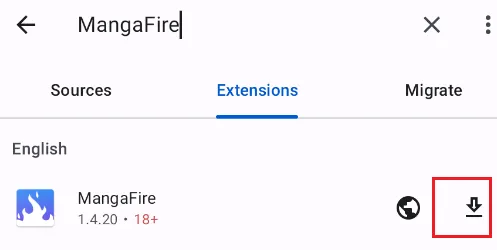
2) Find an extension you want (start with MangaFire or MangaBuddy for English manga), and tap Install next to the extension name.
Step 4: Search and Read Manga
With extensions installed and enabled, you are ready to find and read manga.
What to do:
1)Tap Browse (bottom navigation),then tap the Search tab (or tap the magnifying glass icon at the top);

2) Type the name of a manga you want to read (e.g., "One Piece," "Jujutsu Kaisen," "Solo Leveling"), then tap the search result.

3) Browse the chapter list and tap a chapter to start reading.
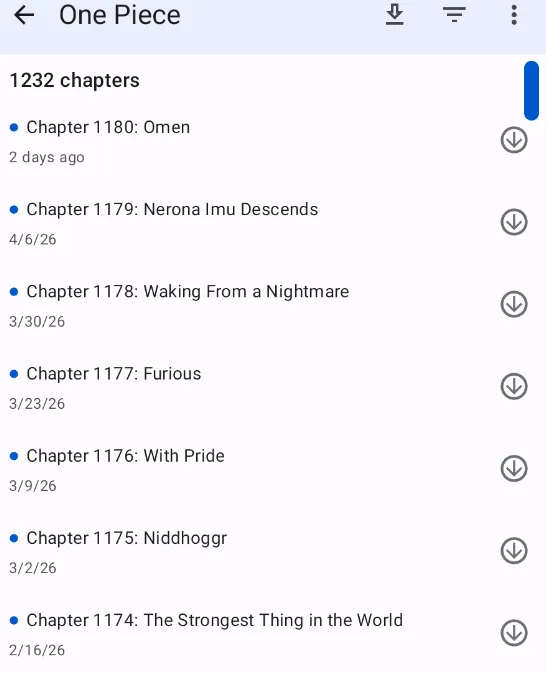
What you should see: The manga loads from your chosen source. Pages appear cleanly with vertical or left-to-right scrolling depending on your settings.
💡 If a source fails to load, try a different extension. Some sites block certain regions or have temporary downtime.
Step 5: Optional but Recommended Settings
Once you confirm everything works, take a minute to adjust these settings for a better experience.
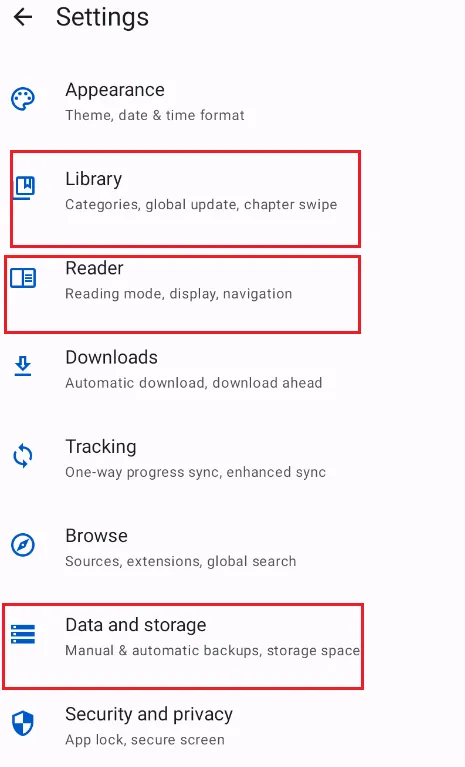
Library settings:
-
Go to More → Settings → Library
-
Set Default display mode to your preference (Grid or List)
-
Turn on Automatic library updates if you want new chapters checked regularly
Reader settings:
-
Go to More → Settings → Reader
-
Set Default reading mode to "Webtoon" for vertical scrolling (best for modern manga and manhwa)
-
Adjust Image scaling to "Fit screen" or "Fit width" depending on your preference
Backup settings:
-
Go to More → Settings → Data and Storage
-
Create a backup now (tap "Create backup")
-
Save the backup file somewhere safe—this preserves your library if you ever switch phones
💡 Creating a backup after your first setup saves you from redoing everything later.
Troubleshooting: What If Something Doesn't Work?
| Problem | Likely Fix |
|---|---|
| No extensions appear after adding repo | Check your internet connection. Try switching Wi-Fi to mobile data. |
| Extension installed but no search results | Make sure the extension is enabled (tap the icon in Extensions tab). |
| Search results show nothing for a popular manga | Try a different extension. Not all sources have every manga. |
| Pages won't load or time out | The source website may be down. Try again later or switch to another extension. |
| App crashes or runs slowly | Clear cache: Settings → Advanced → Clear cache. Restart the app. |
How to Migrate from Tachiyomi to Mihon?
If you are a long-time Tachiyomi user, you don't have to start your library from scratch. Transitioning to Mihon is seamless if you follow the right sequence.
Step 1: Create a Backup in Tachiyomi
1) Open your old Tachiyomi (or fork like J2K);
2) Go to More → Settings → Backup and storage;
3) Tap Create backup;
4) Make sure it saves as a .tachibk file (Mihon no longer supports older .json legacy backups);
5) Save this file to your phone's internal storage or cloud drive.
Step 2: Restore in Mihon
1) Open Mihon;
2) Go to More → Settings → Data and storage → Restore backup;
3) Select the .tachibk file you just created;
4) Wait for the app to process your library, categories, and reading history.
⚠️ The "Catch": What Doesn't Migrate
The backup file contains your list of manga, but not the engines to run them.
Missing Extensions: After restoring, your library covers will likely be blank. This is because Mihon doesn't have the extensions installed yet.
The Fix: You must re-add the Keiyoushi Repo (see step-by-step guide) and manually re-install the specific extensions (like MangaDex or MangaFire) that you used before. Once installed, the covers and chapters will reappear.
The "Essential 5" Extensions
Why recommend these five? Because together, they unlock nearly every comic ever published.
1. MangaFire (The Speedster)
-
Best for: The latest mainstream updates (One Piece, JJK, etc.).
-
Why: It has the fastest upload times and very reliable servers. If a chapter just dropped, it’s here.
2. MangaDex (The Librarian)
-
Best for: High-quality scans and niche titles.
-
Why: No ads, community-driven, and perfect metadata. It's the most "premium" feeling source, even if it occasionally needs a VPN.
3. MangaBuddy (The Reliable Backup)
-
Best for: Filling the gaps.
-
Why: Sometimes MangaDex misses a chapter due to group drama, or MangaFire's link is broken. MangaBuddy is the "safety net" that always has a working copy.
4. Weeb Central (The Quality Specialist)
-
Best for: "Clean" digital versions.
-
Why: They specialize in using official digital rips rather than rough scans from physical magazines. It’s the best for reading on high-resolution tablets.
5. ReadComicOnline (The Western Vault)
-
Best for: Marvel, DC, and Image Comics.
-
Why: Because Mihon isn't just for Manga! This is the gold standard for Western graphic novels, making your Android device a full-fledged comic book reader.
Frequently Asked Questions (FAQ)
1. Is Mihon free?
Yes. Mihon is completely free, open-source, and has no ads. Any website or person asking you to pay for Mihon is a scam.
2. Is Mihon available for iOS/iPhone?
No. Mihon and Tachiyomi are Android-exclusive apps.
-
If you are on an iPhone, look for alternatives like Paperback or Aidoku, which use similar "source" systems but are built for iOS.
3. Is using Mihon legal?
Mihon itself is 100% legal—it's just a reader. The legality of what you read depends on your country's copyright laws and whether the source website has permission to host the content. This article does not provide legal advice.
4. Why is my extension list empty after adding the Repo?
This is usually a network or cache issue.
-
Ensure your connection is stable.
-
Go to Browse
>Extensions and swipe down to refresh. -
Double-check the Repo URL for typos; even one wrong character will break the link.
5. I installed an extension, but I can't find any manga!
In 2026, Mihon extensions are disabled by default for security.
-
After installing, tap the extension name and select "Trust."
-
Without this step, the extension will remain inactive and won't return search results.
6. What should I do if I see "HTTP Error 403" or "Cloudflare" errors?
This means the source website is blocking bots.
-
Tap the manga, click the three-dot menu or Globe icon, and select "Open in WebView."
-
Solve the "I am human" captcha in the pop-up browser.
-
Once the site loads, return to Mihon; the images should now appear.
7. Some extensions don't work or show errors. What do I do?
Try these in order:
-
Ensure it is Enabled and Trusted.
-
Clear the extension's database in Settings > Advanced > Clear database.
-
Open in WebView to check if the source site is down.
-
Switch to a different extension (e.g., use MangaBuddy if MangaFire is failing).
8. How do I update my extensions?
Extensions don't always update with the app. Go to Browse > Extensions. If an update is available, you’ll see an "Update" button. Check this weekly to ensure your sources remain functional.
9. Is it safe to use third-party Repos like Keiyoushi?
While no link is 100% risk-free, the Keiyoushi Repo is the community standard in 2026 with over 13k+ GitHub stars. Never download .apk extensions from untrusted websites; only use the JSON Repo link within the Mihon app.
10. How do I read locally downloaded manga (CBZ/EPUB)?
Mihon supports local files! Create a folder on your phone, put your .cbz or .zip files there, and go to Settings > Browse > Local source location to link it. Your local files will then appear in your library.
Conclusion: Embracing the Future of Manga Reading
The journey from the legendary Tachiyomi to the resilient Mihon is a testament to the strength of the manga community. While the days of "one-click installs" are gone, the transition to Extension Repositories in 2026 has actually made our libraries more flexible and decentralized than ever before.
By setting up Mihon with the Keiyoushi repo and curating your "Essential 5" extensions, you aren't just downloading an app—you are building a private, ad-free sanctuary for your favorite stories. Whether you're catching the latest Shonen jump on MangaFire, appreciating high-fidelity scans on Wavy Central, or revisiting Western classics on ReadComicOnline, you now have the ultimate toolkit at your fingertips.
Final Reminders for a Smooth 2026 Experience:
-
Stay Backed Up: Regularly export your
.tachibkfile to your cloud drive. -
Trust Your Sources: Always remember to manually "Trust" newly installed extensions.
-
Support the Creators: Mihon is a fantastic way to discover new titles, but whenever possible, support the original authors by purchasing official volumes or digital subscriptions.
The landscape of digital manga will continue to evolve, but with this guide in hand, you're ready for whatever comes next.
Happy Reading!